How to Convert Video to AMV Mac
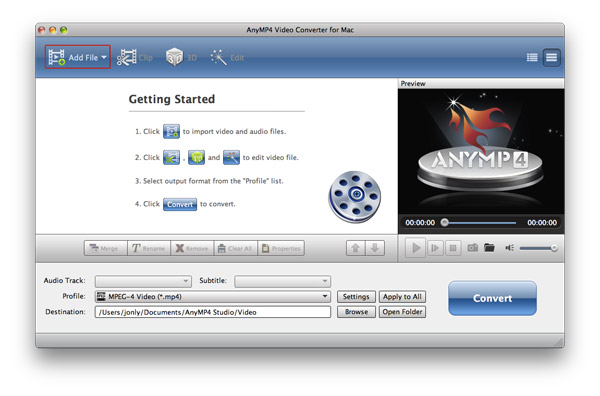
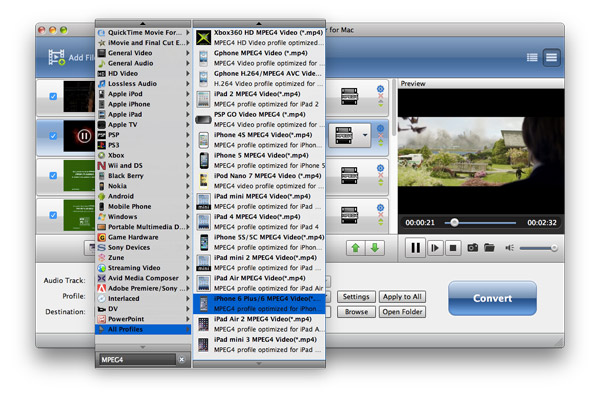
AMV Converter for Mac is an AMV encoding and decoding software for Mac users. Owning this Mac AMV converter, users can convert videos to AMV formats versy easily. You can use this video converter to AMV as a AVI to AMV Conver Mac, FLV to AMV Converter Mac, etc. All the popular videos are supported for you to make movies compatible with your AMV players such as AVI, FLV, WMV, MOV, MP4, MKV, MPG, Rmvb, M4V, SWF, VOB, 3GP, DV, H.264/MPEG-4 AVC, DivX, XviD, AVCHD, M2TS, TS, TRP, MOD etc.
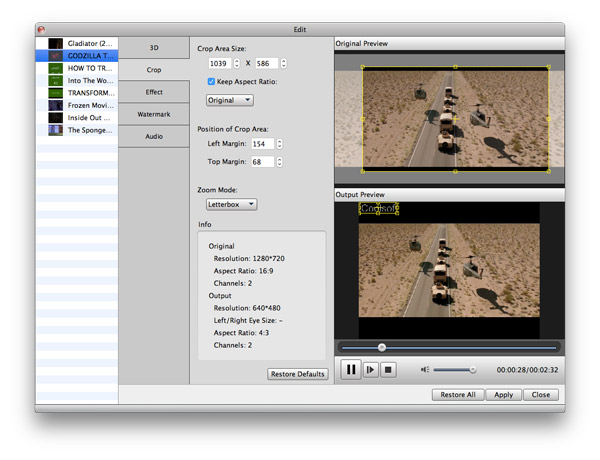
Besides converting video to AMV formats, you can also use this AMV Converter for Mac to make some simple editings before your conversion, like adjust effect, clip, crop, merger, taking still image form frame and batch mode. AMV Converter for Mac is your best tool to share video on portable player supported AMV formats.
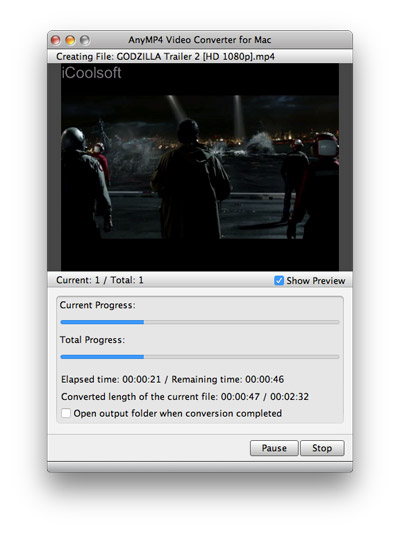
Below I will show you how to convert videos to AMV step by step.