


How to Convert AVI Files to iPhone Format on Mac?
You must have your favorite AVI videos you want to watch on iPhone or other portable players. While iPhone can not support AVI format. iCoolsoft iPhone Converter for Mac is your wise choice to convert your AVI files to high quality iPhone compatible formats on Mac.
iCoolsoft iPhone Converter for Mac also helps you edit videos by splitting, merging, cropping, adjusting effect, adding watermark, etc. You can easily create personalized Flash videos for posting on internet.
Step-by-step Guide about How to Convert AVI to iPhone Format
Free download iCoolsoft iPhone Converter for Mac.
Step 1: Install and launch iCoolsoft iPhone Converter for Mac.
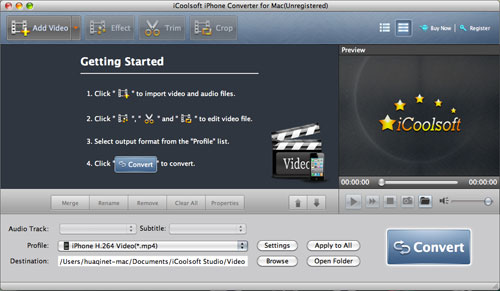
Step 2: Click "Add File" button to add AVI files to this program. You can preview them in the preview pane and take snapshot of the scenes you like.
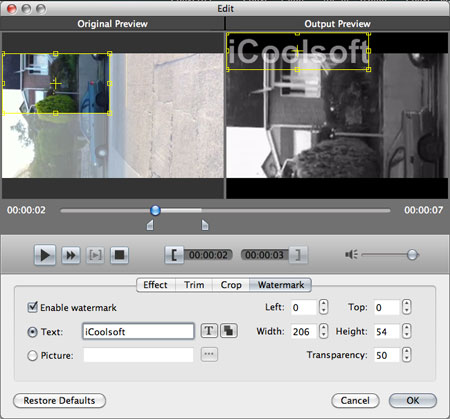
Step 3: Adjust effect, trim clips, crop displaying area, and add text/picture watermark if you like.
Step 4: Set the output format as iPhone format from the drop-down list of "Profile". Set other parameters by clicking button "Settings".
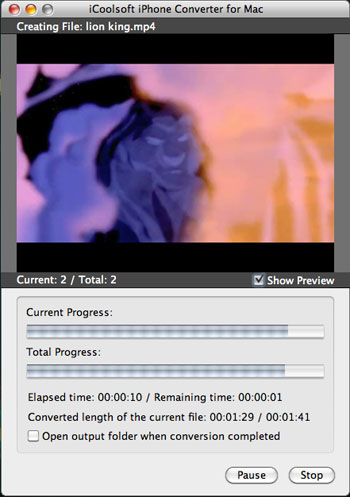
Step 5: Set the destination and click button "Convert" to start converting AVI files to iPhone format. Wait for a while until the conversion is finished. Then you can see the original AVI files through your iPhone any time any place you want.