



How to Convert AVI to 3GP on Mac?
Want to convert AVI to 3GP on Mac? iCoolsoft 3GP Converter MAC is such an AVI to 3GP Mac Converter that can convert AVI to 3GP on MAC with perfect output quality and high conversion speed for Mac users. It is a useful and convenient tool for you to convert AVI to 3GP on Mac. With the help of iCoolsoft 3GP converter for Mac, you can convert AVI to 3GP Mac easily.
With it, you can also extract audio tracks from videos and convert it to any popular audio formats like MP3, AAC, M4A, etc. What's more, you customize your video by trimming, merging, cropping, and adding special effects.
Step-by-step Guide about How to Convert AVI to 3GP
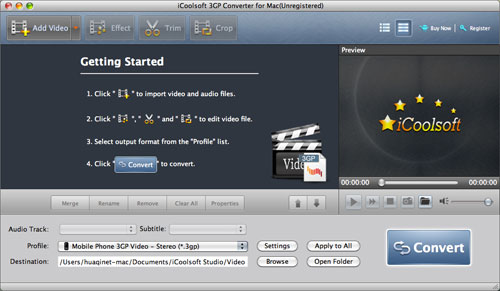
Free download and install iCoolsoft 3GP Converter for Mac. Launch the software.
1. Click "Add Video" button to add the AVI files you want to convert.
2. Select 3GP as the output format from the drop-down list of "Profile".
3. Set the destination.
4. Click button "Convert" to start converting AVI files to 3GP format.
Tips:
> Preview and take snapshot
Click a file from the file list and click button  then you can preview it in the preview pane. While previewing, you can take snapshot of the scenes you like by clicking button
  . The scenes will be saved as JPEG, GIF, or BMP format as you set. Click button
  can help you quickly find those snapped pictures.
> Edit
iCoolsoft 3GP Converter for Mac provides us with several powerful editing functions. With them, you can customize out your own brand-new files if you like.
You can use the "Effect" function to adjust the Brightness, Contrast, and Saturation of the original AVI files.
The "Trim" function can help you to trim any time-length of clips. So you can convert only a part of the original file or you can delete some content you do not like of the original file.
The "Crop" function allows you to select the Aspect Ratio, including 16:9, 4:3, and Full Screen, for the target 3GP file. With that function, you can also crop the video image of the original file to zoom in some certain part or get rid of the black borders.
The "Watermark" function enables you to add text or picture watermark. You can set the transparency, location, font, size, color, etc. as you like.
