

How to Convert Videos for Mobile Phones?
Mobile phone
A mobile phone (also known as a cellular phone, cell phone and a hand phone) is a device that can make and receive telephone calls over a radio link whilst moving around a wide geographic area. It does so by connecting to a cellular network provided by a mobile phone operator, allowing access to the public telephone network. By contrast, a cordless telephone is used only within the short range of a single, private base station.
In addition to telephony, modern mobile phones also support a wide variety of other services such as text messaging, MMS, email, Internet access, short-range wireless communications (infrared, Bluetooth), business applications, gaming and photography. Mobile phones that offer these and more general computing capabilities are referred to as smartphones.
The first hand-held mobile phone was demonstrated by Dr Martin Cooper of Motorola in 1973, using a handset weighing around 2.2 pounds (1 kg). In 1983, the DynaTAC 8000x was the first to be commercially available. From 1990 to 2011, worldwide mobile phone subscriptions grew from 12.4 million to over 5.6 billion, penetrating about 70% of the global population and reaching the bottom of the economic pyramid.And more and more mobile phones can carry a video so if you want to transfer some videos to you phone you can use the fantastic icoolsoft converter.
How to Convert Videos for Mobile Phones?
Step 1: Free download iCoolsoft Mobile Phone Video Converter, install and launch it.
Step 2: Click "Add File" button to add the video files you want to convert.
Step 3: Select the output format compatible with your mobile phone from the drop-down list of "Profile".
Step 4: Click button "Browse" to set the destination for saving the converted file.
Step 5: Click button "Convert" to start the conversion.
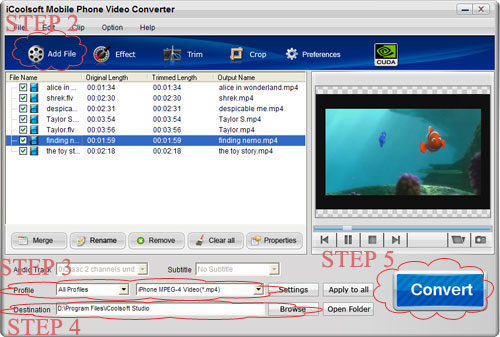
Those five steps are all you need to do to convert video files for your mobile phone with iCoolsoft Mobile Phone Video Converter. However, the converter also provides you with some practical functions like:
1. Set output parameters
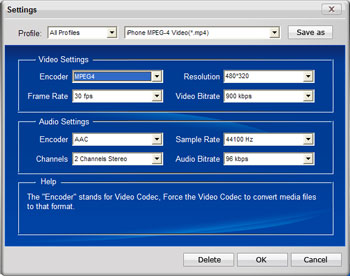
Click button "Settings" then you can set Video Encoder, Video Resolution, Frame Rate, Video Bitrate, Audio Encoder, Sample Rate, Channels, and Audio Bitrate.
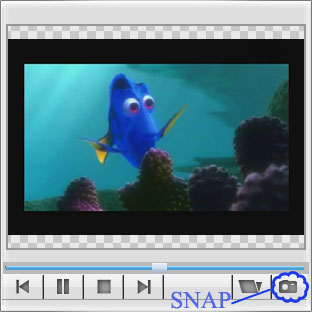
2. Preview & Take snapshot
After adding video files, you can preview them in the preview pane and take snapshot of the scenes you like the most of the video freely.
3. Edit original video files
1) Effect
You can click button "Effect" to adjust Brightness, Contrast and Saturation.
2) Trim
If you only want to convert a segment of the entire video or do not want to convert some certain segment of the video, you can use the trim function. Click button "Trim" and play the video in the Edit window. You can either drag  and
and  or click
  and
and  to set the start time and the end time of the clip. Besides, you can input the exact start time and end time or one of them and the time duration.
3) Crop
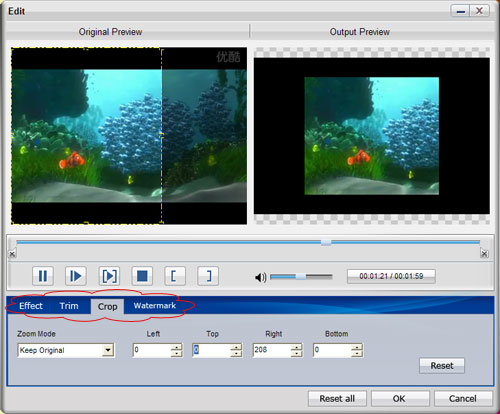
To get rid of the black border or to zoom in some part of the scene, you can click button "Crop" and then drag the yellow frame or adjust the values in the boxes. You can also select "Full Screen", "Keep Original", "16:9" or "4:3" from the drop-down list of "Zoom Mode".
4) Watermark
You can add text or picture watermark to the original video files as you like.