



How to Transfer Files between iPhone and Computer?
Want to turn your iPhone into a multimedia center? iCoolsoft iPhone Transfer can help you. It supports iPhone, iPhone 3G, iPhone 3GS and iPhone 4. iCoolsoft iPhone Transfer is a powerful software which owns various functions such as transfer files from PC to iPhone and iPhone to PC, store files in "My Cache", rip DVD, convert files to iPhone format, make iPhone Ringtone, etc.
This all-in-one iPhone Transfer tool provides powerful video convert and transfer function for you to enjoy all sorts of multimedia files on your iPhone. With excellent iPhone to PC backup function, this tool is much more powerful and handier than iTunes. You can use your iPhone in a much easier way with this iCoolsoft iPhone Transfer, which also works with iPod.
Download this iPhone Transfer and have a try.
Friendly tip:
Please make sure you have installed iTunes on your computer and please do not run iTunes while running this program.
First of all, free download iCoolsoft iPhone Transfer and install it in your computer. Launch it after the installation. Connect your iPhone to your computer via USB cable.
DOWNLOAD this software to click here
To import files from Computer to iPhone:
1. Music to iPhone
1) Select "Music" in the left list, then click  to open the convert and import window. Click "Add File" or "Load DVD" button to add the files you want to import.
2) Select Audio Track and Subtitle. Click "Settings" button to set the output parameters, including, Video Encoder, Video Resolution, Video Frame Rate, Video Bitrate, Audio Encoder, Audio Sample Rate, Audio Channels, and Audio Bitrate. You can skip this step if you do not have special needs on them.
3) If the files you added are compatible with iPhone, you can directly click "Import" button to import those files.
If the files yompatible with iPhone, you have to choose a proper output format from the drop-dowou added are not cn list of "Profile". Check "Convert files before importing", then click "Import" button. The software will automatically convert the added files to the format you chose and then import them to your iPhone.
2. Video to iPhone
Same as "Music to iPhone".
3. Image to iPhone
Select "Photo" in the left list, and then click .gif) to import your local pictures to your iPhone.
to import your local pictures to your iPhone.
Tip: Right click the selected picture, you can delete it from your iPhone directly.
4. Ringtone to iPhone
1) Select "Ringtone" in the left list, then click ".gif) to open the convert and import window. Click "Add File" or "Load DVD" to load source files.
to open the convert and import window. Click "Add File" or "Load DVD" to load source files.
2) You can import the entire file or you can select a part of the source DVD/video/audio file to import. To select a part of the source file, you can just input the exact time values in the "Start Time" and "End Time" boxes, or you can drag the icons.
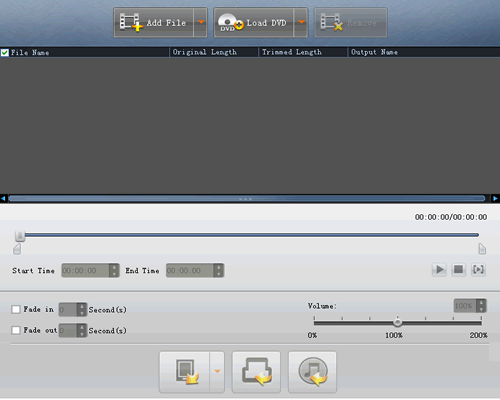
3) Check "Convert files before importing" if there is a need. Click "Import" button to start the importing.
To export files from iPhone to computer:
Step One:
Open the library/playlist that you want to export files, and then check the file(s) you want to export from the file list.
Step Two:
Click  to select the destination of the exporting files and start exporting files.
Otherwise, you could also choose the "Export to PC" option from the Actions menu, and then export the files from your iPhone to computer.
Tip: Click "Search" to use "Track Filter" function to help you quickly browse your library by genre, artist and album.
